
How to sit at a computer: the setup that works, in numbers
By Dipanshu Goyal · · Updated
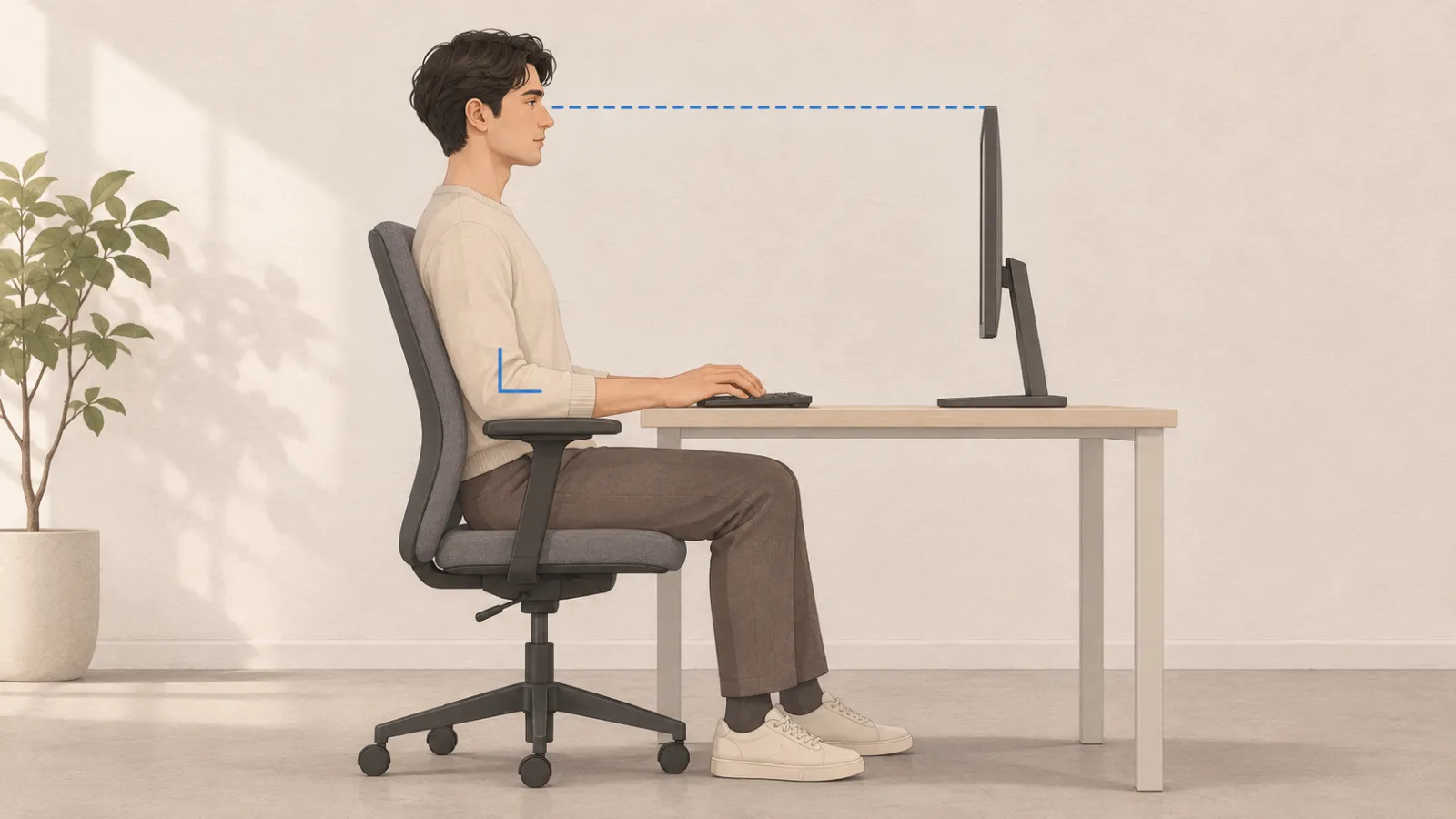
Short version
- Screen: top edge at or just below eye level, 50–100 cm (20–40 in) from your eyes, straight in front of you.
- Arms: elbows close to your sides, bent 90–120°, wrists straight; keyboard and mouse at elbow height.
- Back: sit back in the chair with your lower back supported, leaned back a little — Cornell’s research puts the best seated posture at a 100–110° recline, not bolt upright.
- Legs: thighs roughly level, knees about hip height, feet flat on the floor or on a footrest.
- Laptop: the keyboard and screen can’t both be in the right place. Raise the laptop on a stand and add a separate keyboard and mouse.
- The habit that matters more than any angle: change position often and stand up every 30–60 minutes. A good setup makes sitting well easy; a reminder makes it happen.
Most “how to sit” advice is a drawing of a stiff person at 90° angles. The official guidance is more forgiving than that, and more specific. Here is what two of the most widely cited guides say, in numbers: OSHA’s computer workstation guide and Cornell University’s ergonomics group. After that come the laptop problem and the habit that outranks all of it.
The numbers at a glance
| What | Figure | Source |
|---|---|---|
| Top of screen | At or just below eye level; screen centre 15–20° below eye level | OSHA |
| Screen distance | 20–40 in (50–100 cm); never under 20 in | OSHA |
| Screen direction | Straight ahead; no more than 35° to either side | OSHA |
| Elbows | Close to the body, bent 90–120° | OSHA |
| Wrists | Straight, forearms roughly parallel to the floor | OSHA |
| Backrest | Reclined 100–110° (Cornell); OSHA accepts up to 120° | Cornell, OSHA |
| Thighs and knees | Thighs level, knees about hip height | OSHA |
| Feet | Flat on the floor, or on a footrest | OSHA |
| Stand up | Every 30–60 minutes; micro-breaks between; eye break every 15 min | Cornell |
1. The screen: eye level, arm’s length, straight ahead
Your neck follows your eyes. If the screen is low, your head drops forward and the neck muscles hold it there all day; if it’s off to the side, you twist. A low screen rounds the shoulders too, the usual reason the upper back aches at a computer. So the screen sets everything else. The figures in this section are from OSHA’s monitor guide unless marked otherwise.
- Height: place the monitor so the top line of the screen is at or just below eye level; the centre of the screen should sit about 15–20° below horizontal eye level. Cornell’s version of the same rule: your eyes level with a point 2–3 inches below the top of the monitor casing.
- Distance: 20–40 inches (50–100 cm) from your eyes to the screen, and at least 20. Cornell’s quick check: sit back, stretch out an arm, and your fingertips should touch the screen. If text is too small at that distance, make the text bigger rather than leaning in.
- Direction: directly in front of you, never more than 35° to either side. Two monitors? Put the one you use most in the middle.
- Tilt and glare: tilt the screen so it faces your eyes squarely, and put it side-on to windows so neither you nor the screen faces the light.
If you wear bifocals, the standard height makes you tip your head back to read through the bottom of the lens. Lower the screen and tilt it up, or get single-vision glasses for the computer.
A screen that’s too low is the usual start of forward head posture.
2. Arms and hands: elbows by your sides, wrists straight
- OSHA’s positions guide has shoulders relaxed, upper arms hanging naturally, and elbows close to the body and bent 90–120°.
- Hands, wrists and forearms straight and roughly parallel to the floor, from the same guide. That means the keyboard sits at about elbow height — usually lower than a standard desk, which is why keyboard trays exist. Cornell goes further and recommends a tray with a slight negative tilt, sloping down and away from you, so the wrists stay flat.
- Cornell also puts the mouse right next to the keyboard at the same height, so the upper arm stays close to the body instead of reaching.
A desk that’s too high is the most common reason shoulders creep up toward the ears. If you can’t lower the desk, raise the chair and add a footrest.
3. Back: sit back, lean back a little
This is where the folk advice is wrong. “Sit up straight” at 90° is a static, effortful posture that few people hold for more than a few minutes. Cornell’s guidance is blunt: “Erect sitting is NOT relaxed, sustainable sitting, reclined sitting is,” and it cites studies putting the best seated posture at a 100–110° recline. OSHA lists four acceptable reference postures, not one: upright, declined (hips above knees), reclined (torso leaning back 105–120° from the thighs), and standing. It says the back should be fully supported with lumbar support whether upright or leaning back.
So: sit all the way back so the chair’s lumbar curve meets your lower back, set the backrest a notch past vertical, and let the chair hold you. Slouching is what happens when you perch on the front half of the seat with nothing behind you — the back rounds because nothing is supporting it.
4. Legs and feet: level thighs, flat feet
OSHA’s guide has thighs roughly parallel to the floor, knees about the same height as the hips, and feet slightly forward and fully supported by the floor. If the desk can’t come down and you had to raise the chair, it says to use a footrest. Dangling feet pull you forward off the backrest, which is the start of a slouch.
5. Laptops: the one setup that can’t be right
A laptop breaks the first rule by design: the keyboard and the screen are attached. If the keyboard is at the right height the screen is too low, and if the screen is at eye level the keyboard is in your face. Cornell’s ergonomics group puts it plainly: the design “violates a basic ergonomic requirement” that the keyboard and screen be separate. It adds that the ergonomic design guidelines written in the late 1970s all called for separating them.
The group’s advice for anyone who uses a laptop as their main computer: raise it on a stand (or a stack of books) so you can see the screen without bending your neck. Add a separate keyboard and mouse as well. In practice, that’s the same top-of-screen-at-eye-level rule as a monitor, with the keyboard back down at elbow height. An external monitor is better still. For a MacBook user this is the single highest-value change on the page: it reduces the forward head tilt that laptop work forces. We covered how much that tilt loads the neck in How to stop slouching at your desk. More on the laptop case, including the no-stand situations: Laptop posture. If your neck already hurts from laptop work, laptop neck pain covers what helps.
6. The habit that outranks the angles
Every number above describes a position. No position is good for an hour. Cornell’s break guidance for computer work: look away at something distant every 15 minutes, and take micro-breaks of under two minutes between bursts of typing. Stand up and move around every 30–60 minutes, and take a longer exercise break every hour or two. The strongest evidence on desk pain is for exactly this — interrupting long sitting — rather than for holding any particular shape. The trial that halved new neck pain in office workers did it with prompted breaks and posture shifts, not with a perfect chair. The slouching guide covers that trial. Do posture apps actually work? covers the break-prompt trials. They include a 2025 meta-analysis of 18 randomised trials.
The practical problem is that a good setup makes sitting well possible, and then you forget about it by 11 a.m. You start in the right position and drift — chin forward toward the screen, shoulders rounding, weight sliding off the backrest — without noticing, because your attention is on the work. That’s what a reminder is for.
A five-minute setup checklist
- Sit all the way back; backrest a notch past upright; lower back supported.
- Adjust chair height until elbows are at 90° with the keyboard — then add a footrest if your feet don’t reach.
- Raise or lower the screen until its top edge is at eye level; push it to arm’s length.
- Laptop? Stand + separate keyboard and mouse.
- Set something to get you up at least every hour — a reminder with evidence behind it.
Where Slumpy fits
Slumpy is a posture reminder app for Mac that handles the part the checklist can’t: noticing when you’ve drifted. It checks your posture with a camera glance of a second or two every few minutes, camera off the rest of the time. When you’ve slumped, a small dinosaur slouches with you and a gentle screen effect spreads until you sit back up. It also reminds you to stand — every 60 or 90 minutes, your choice (120 if you’d rather). Set the desk up once with the numbers above, calibrate Slumpy to how you sit when it’s right, and the app does the remembering. If you’re weighing it against the other Mac options, we compared them side by side.
Questions people ask
What is the correct height for a computer screen?
Top of the screen at or just below eye level, with the centre of the screen about 15–20° below your horizontal line of sight. On a laptop, that means raising it on a stand and using a separate keyboard.
Should I sit up straight or lean back?
Lean back a little. Cornell’s research-based guidance is that a 100–110° recline is the best sustainable seated posture, and OSHA accepts reclined sitting up to 120°. The key is that your back is supported by the chair, not held up by your muscles.
How far should I sit from my monitor?
About an arm’s length: 20–40 inches (50–100 cm) from eyes to screen, and never closer than 20 inches. Increase the text size rather than leaning closer.
How often should I get up from my desk?
Stand up and move every 30–60 minutes, with short micro-breaks in between and an eye break every 15 minutes or so. Breaking up sitting has better evidence behind it than any single sitting position.
Where should my keyboard and mouse be?
At elbow height, close enough that your elbows stay by your sides, with wrists straight. The mouse goes right beside the keyboard at the same height.
Slumpy is a posture reminder app for Mac. It’s free on the Mac App Store — 3 hours of posture checks a day, no credit card, no account.
Figures above are from OSHA’s Computer Workstations eTool and Cornell University’s CUErgo guides, linked where quoted; they are general guidance, not medical advice.